Character Settings
Control combat visuals, interface panels, number formatting and protection-zone safety for each character.
1. Open Character Settings
Open the client's top-menu Buttons list and press Character Settings. This opens one compact window containing every available display and safety option.
- The settings take effect immediately.
- You can reopen the window at any time to change an option.
- Server-saved settings follow the character after relogging.
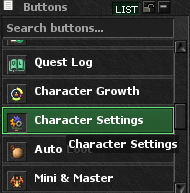
2. Character Settings Window
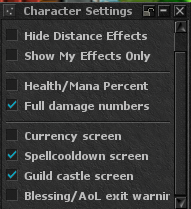
The window combines three groups: combat-effect filters, health and damage presentation, and optional interface panels. The final option protects characters from accidentally leaving a safe zone without death protection.
- Effect filters can reduce visual clutter during crowded fights.
- HUD options let you keep only the panels you actually use.
- The Blessing/AoL warning is enabled by default for safety.
Visual and Combat Options
Hide Magic Effects
Hides spell and magic effect animations. Useful in busy hunts and events when you want a cleaner view or better performance.
Hide Distance Effects
Hides travelling projectiles such as bolts, arrows and other distance-shot animations while keeping normal gameplay active.
Show My Effects Only
Shows effects created by your own character while filtering effects created by other players. This keeps your own combat feedback visible in crowded areas.
Health/Mana Percent
Displays Health and Mana as percentages in the supported health information and top-bar displays instead of relying only on raw values.
Full Damage Numbers
Shows complete damage values. Disable it to use compact abbreviated numbers, which take less screen space during fast combat.
Interface Options
Currency Screen
Shows or hides the Currency HUD, where supported character currencies and token balances are displayed.
Spellcooldown Screen
Shows or hides the on-screen spell cooldown interface used to follow spells that are still recharging.
Guild Castle Screen
Shows or hides the Guild Castle interface and its related ownership display, including castle owner information when available.
Blessing/AoL Exit Warning
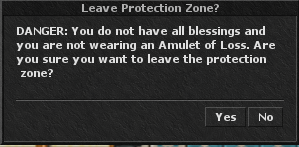
When this option is enabled, the server checks your protection when you attempt to walk from a Protection Zone into a non-PZ tile.
- No warning is needed when you have all five regular blessings.
- No warning is needed while wearing an Amulet of Loss (Item ID 2173) in the necklace slot.
- If either protection is incomplete, movement is stopped and the confirmation window appears.
- Yes: confirms that you accept the risk and allows you to leave.
- No or closing the window keeps the character inside the Protection Zone.
- After every death, a fresh exit confirmation is required the next time the character tries to leave without full protection.
Untick Blessing/AoL exit warning only if you deliberately do not want this safety check.